Step 3 · 3 min
Connect Meta AI glasses
Optional. Skip this if you use the phone camera.
You need Meta AI glasses already paired in the Meta AI app.
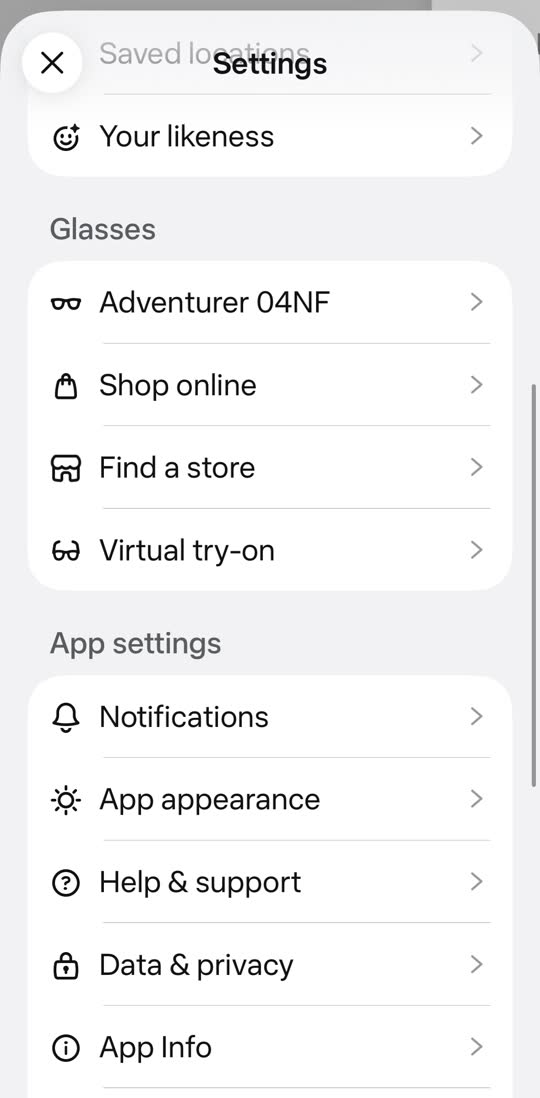
1Turn on Developer Mode#
In the Meta AI app:
- 1. Settings › App Info.
- 2. Tap App version 5 times in a row.
- 3. Tap Enable.
- 4. Tap Install next to your glasses.
- 5. Tap Join when it asks to join the glasses’ Wi-Fi.
Carbyn isn’t in Meta’s app list yet, so this switch lets it connect.
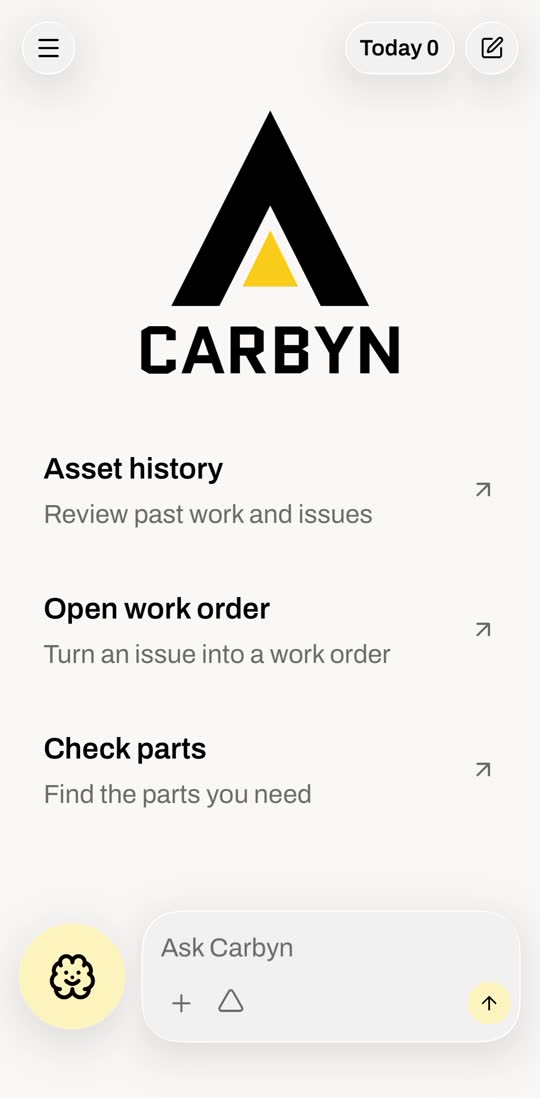
2Connect from Carbyn#
In Carbyn: Menu › Glasses › Connect. Meta AI opens.
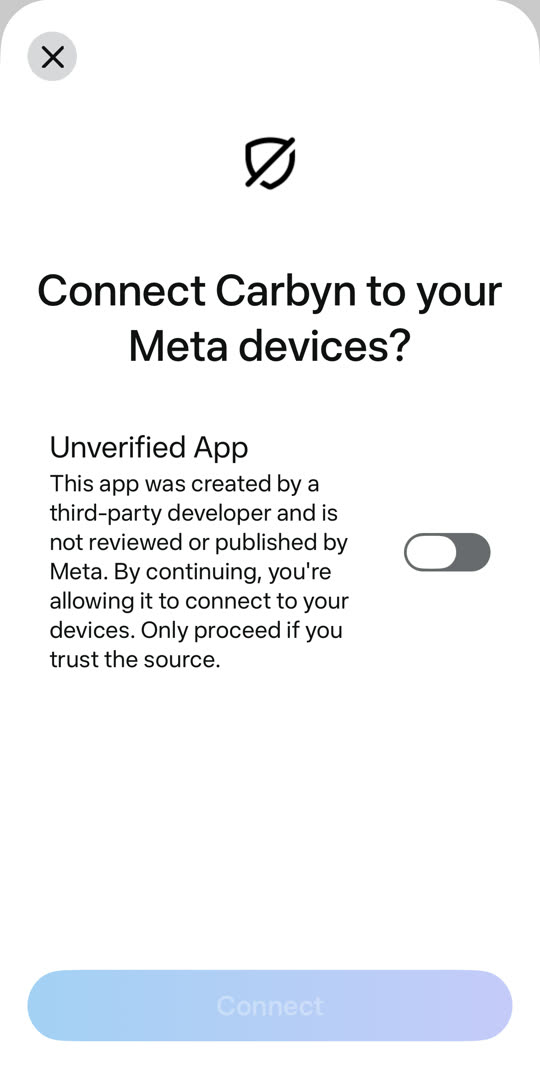
3Allow Carbyn#
Carbyn sends you to the Meta AI app. You’ll see this screen.
Turn on the switch, then tap Connect.
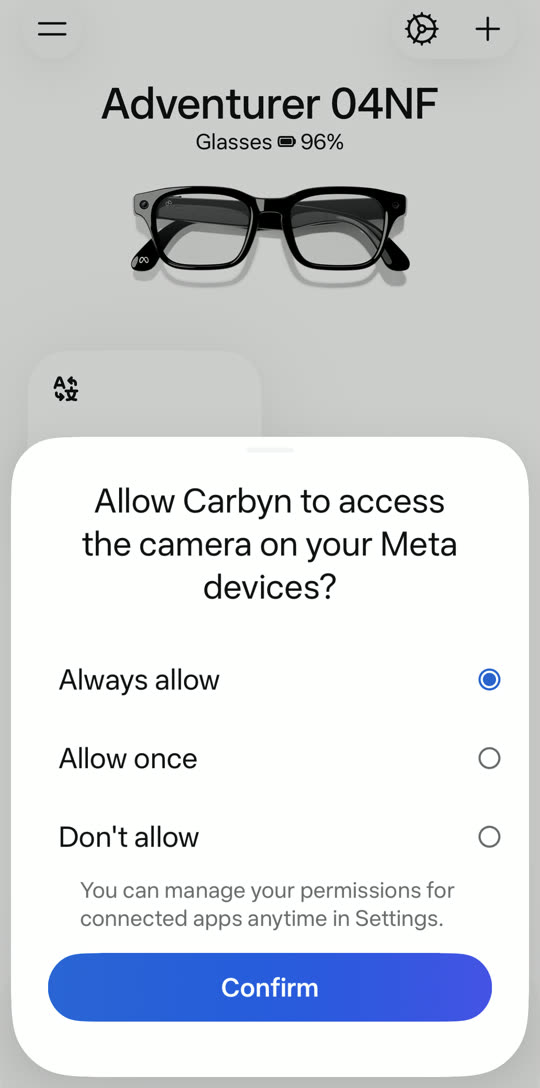
4Allow the camera#
Still in Meta AI: choose Always allow, then Confirm.
Back in Carbyn, tap the yellow button and pick the glasses. See how
Quick fixes#
- No Enable prompt
- Tap App version five times in a row, quickly.
- “Connection failed” in Carbyn
- Your glasses aren't paired in Meta AI yet. Pair them there, then tap Try again.
- Connect doesn't open Meta AI
- Developer Mode is off. Go back to step 1.
- Connect stays grey in Meta AI
- Turn on the Unverified App switch first.
- Camera stopped working
- Meta AI › Settings › connected apps › Carbyn. Allow the camera.